Blur, Blackout, or Pixelate Private Information in Screenshots on Android
Before you post, send, or save a screenshot, make sure private details are not still visible.
Photo Blur & Redact - Privacy helps Android users hide sensitive information in screenshots and photos. Blur names, blackout phone numbers, pixelate private areas, then save or share a newly edited copy.
Images are edited on your device. Review every edited image before sharing.
Scan to install
Open the Google Play listing on your Android phone.
Why Use Photo Blur & Redact - Privacy?
Hide private details before posting screenshots online.
Blur names, faces, usernames, messages, and background details.
Blackout sensitive text when you want clearer coverage.
Pixelate selected areas in screenshots or photos.
Save a newly edited copy instead of replacing the original.
Share the safer version through Android's normal share flow.
What the App Does
Photo Blur & Redact - Privacy gives Android users a quick way to cover visible personal information in images.
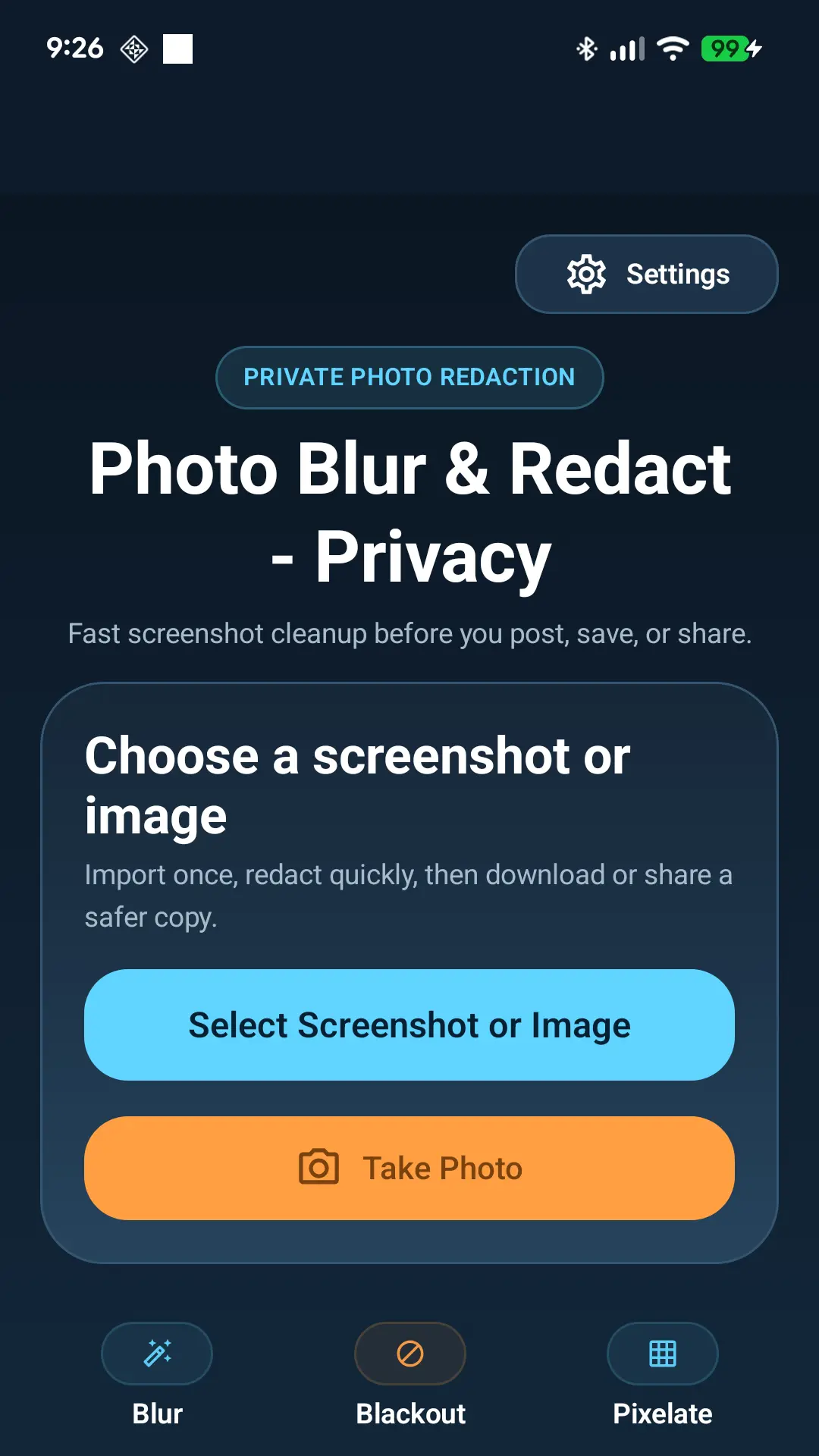
Import a screenshot or photo, choose a redaction style, cover the area you want to hide, and export a newly edited copy. The app is designed for practical everyday privacy tasks: hiding chat messages, removing phone numbers, covering email addresses, obscuring names, and preparing screenshots before sharing them online.
The editing flow stays simple. You do not need a complicated photo editor just to hide one private line of text.
Who This App Is For
This app is useful for anyone who shares screenshots or photos and wants to avoid exposing personal details by accident.
People posting screenshots on social media
Users sharing chat screenshots
Creators preparing tutorial or support images
Freelancers and professionals sharing work examples
Students covering school, account, or form details
Anyone hiding names, phone numbers, emails, addresses, or banking details
Feature Breakdown
Import Screenshots or Photos
Choose an existing image from your Android device. The app works with screenshots and ordinary photos, so you can clean up both screen captures and camera images before sharing.
Choose Blur, Blackout, or Pixelate
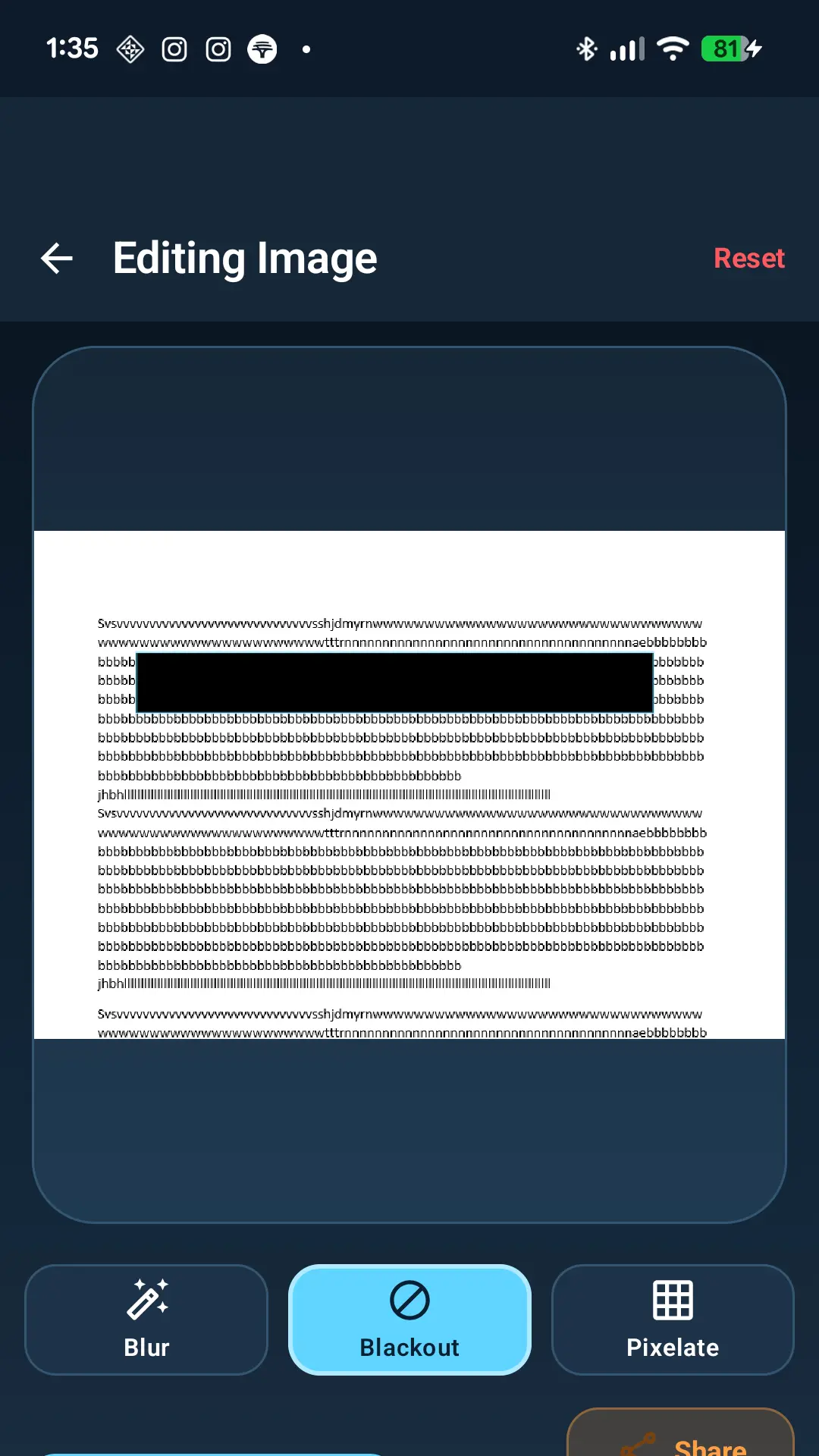
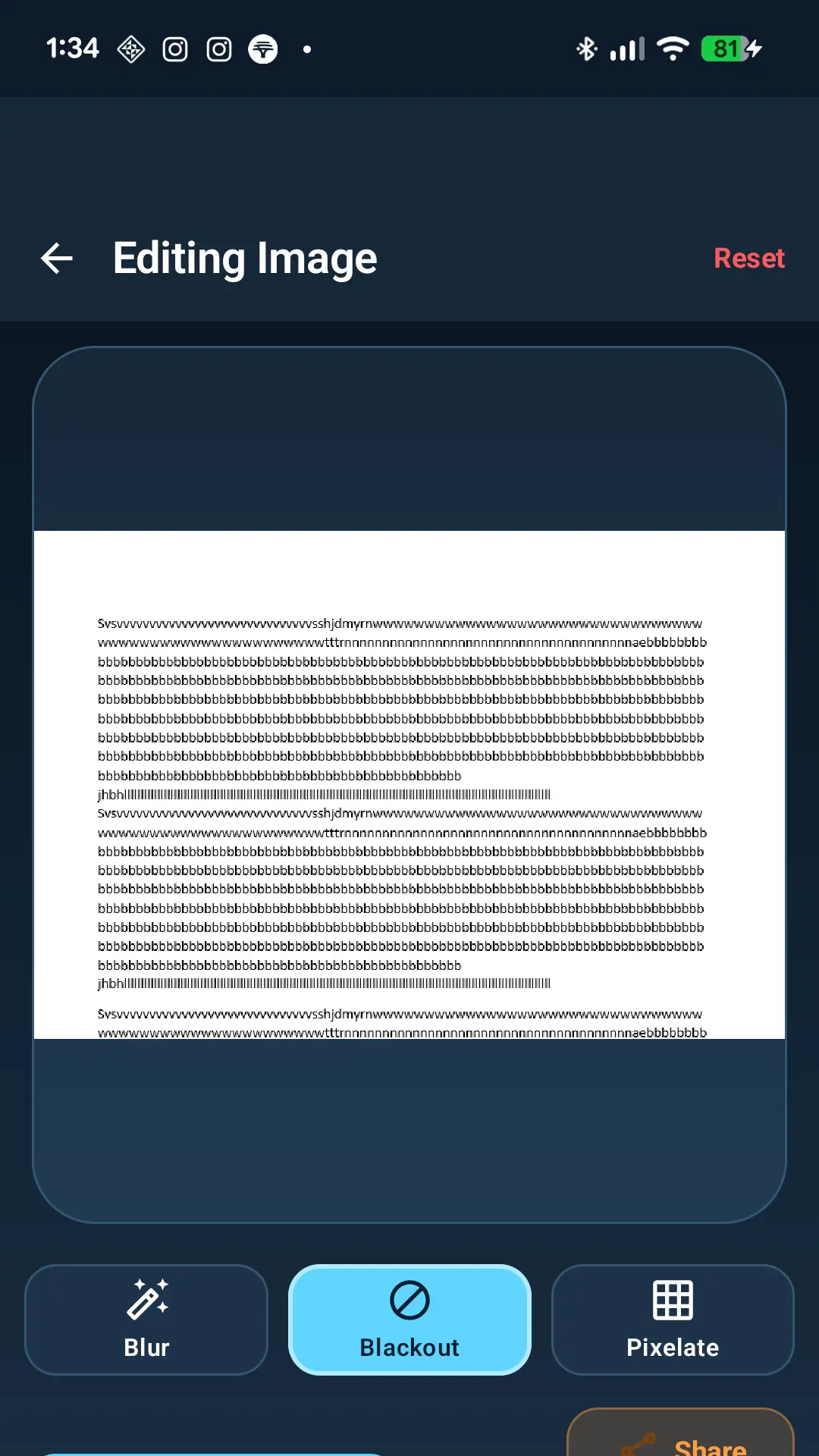
Different privacy situations need different coverage. Use blur for soft visual hiding, blackout for stronger text coverage, or pixelate for a familiar censored-photo look.
Select the Private Area
Cover the exact part of the image that contains private information. This keeps the rest of the screenshot readable while hiding the details you do not want to expose.
Save a New Edited Copy
The app exports a newly edited image. That helps you keep the original separate from the version you plan to share.
Share the Safer Version
After editing, share the redacted copy through Android's normal sharing options for messaging apps, social platforms, work chats, and support conversations.
On-Device Image Editing
Your image editing happens on your device. The app is designed around simple local redaction before sharing. Always review the final image carefully.
Fast Editing Flow
Open an image, cover the sensitive area, export, and continue with your day. The app is built for quick privacy cleanup, not complicated design work.
Simple Interface
The interface focuses on the core task: hiding visible private information in screenshots and photos before they leave your phone.
How It Works
Choose an image
Import a screenshot or photo from your Android device.
Select a style
Pick blur, blackout, or pixelate depending on what you want to hide.
Cover sensitive info
Place the redaction over names, numbers, messages, addresses, or other private areas.
Save or share
Export the redacted version and share that safer image instead of the original.
Tutorials for Common Screenshot Privacy Tasks
How to Blur Private Information in a Screenshot
Open your screenshot, choose the blur tool, and cover the area that contains private information. Blur is useful when you want to reduce visibility without making the screenshot feel too visually heavy.
How to Blackout Text Before Sharing a Screenshot
Choose blackout when the information should be clearly covered. Blackout is often the better option for phone numbers, emails, addresses, payment details, account IDs, and private chat lines.
How to Pixelate Part of a Photo on Android
Pixelate is useful when you want a recognizable censored look. It works well for faces, profile photos, usernames, license plates, or selected image areas.
How to Hide Names, Numbers, and Messages Before Posting
Before posting, scan the entire image. Look for contact names, message previews, account handles, timestamps, profile photos, emails, phone numbers, and visible background details.
How to Safely Share Screenshots Online
Check what is visible, hide private areas, save a new edited copy, review the final image, then share only the redacted version.
Common Use Cases
Hiding phone numbers
Use blackout or pixelate when a number appears in contact cards, delivery messages, receipts, or support screenshots.
Hiding usernames
Blur or pixelate handles before posting screenshots to public spaces where the person's identity is not needed.
Hiding email addresses
Blackout is usually best because email text can remain readable through weak blur.
Hiding addresses
Cover home addresses, workplace locations, shipping labels, and map details before sharing.
Blurring profile photos
Blur or pixelate profile photos when sharing chat screenshots or social media examples.
Covering payment or banking details
Use blackout for card information, transaction references, balances, account identifiers, and banking details.
Censoring chat screenshots
Cover names, profile photos, message content, timestamps, and group details before posting.
Preparing screenshots for social media
Redact anything viewers do not need to see before posting to Instagram, X, Facebook, WhatsApp, or public communities.
Redacting work or personal details
Prepare images for support tickets, tutorials, client updates, school work, or public examples.
Blur vs Blackout vs Pixelate
Each redaction style has a different purpose. Choose the one that matches how sensitive the visible information is.
Blur
Softly hiding less sensitive visual details.
Profile photos, faces, usernames, background details, and visual distractions.
Use enough blur to make text unreadable. Light blur may still leave words partly visible.
Blackout
Clear coverage for sensitive text.
Phone numbers, emails, addresses, payment details, private messages, account IDs, and banking information.
For highly sensitive text, blackout is usually the clearest visual choice.
Pixelate
A recognizable censored-photo look.
Faces, profile photos, usernames, license plates, and social screenshots where you want visible censorship.
Pixelate works well when you want readers to understand that something was intentionally hidden.
Screenshot Gallery
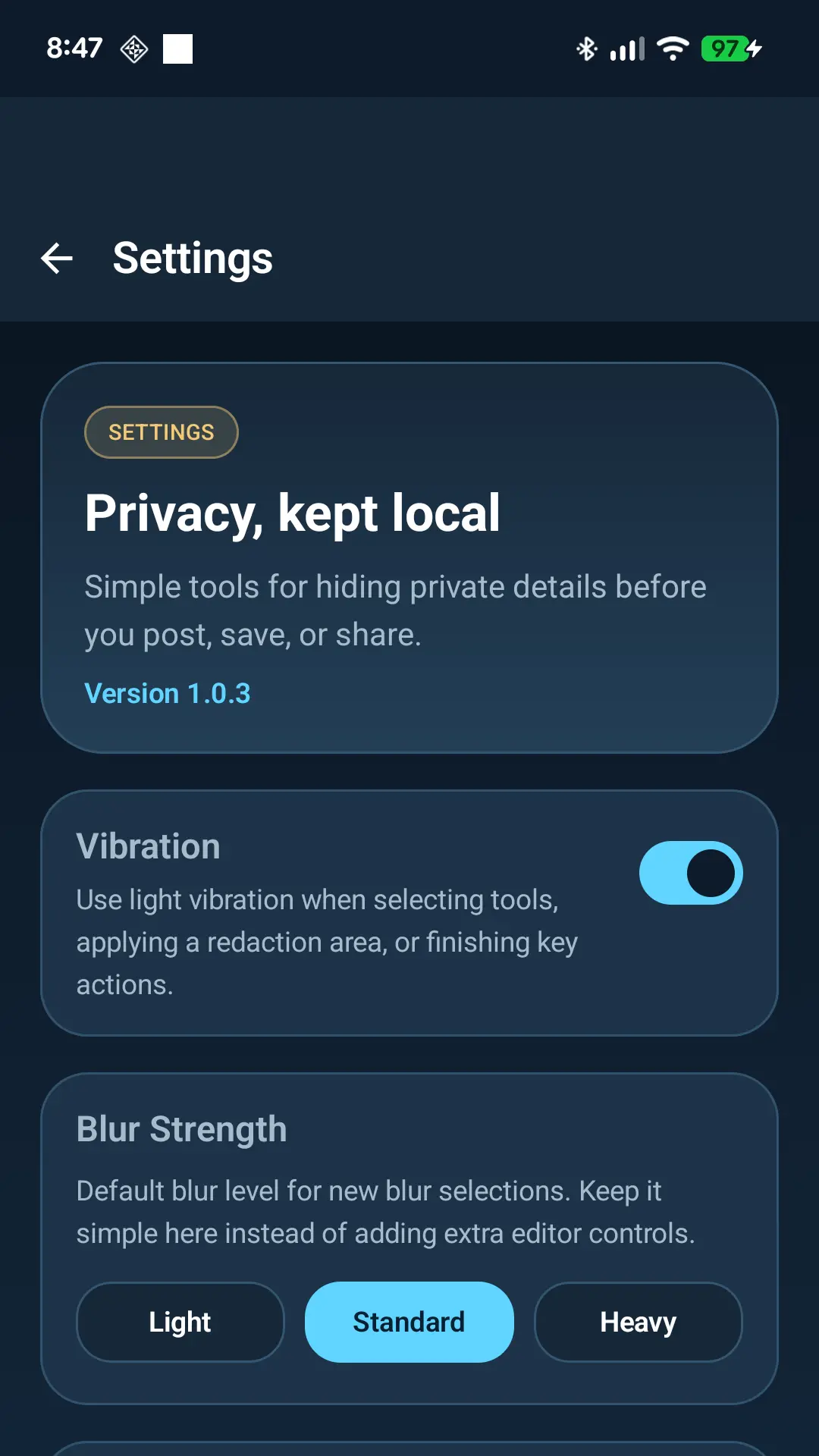
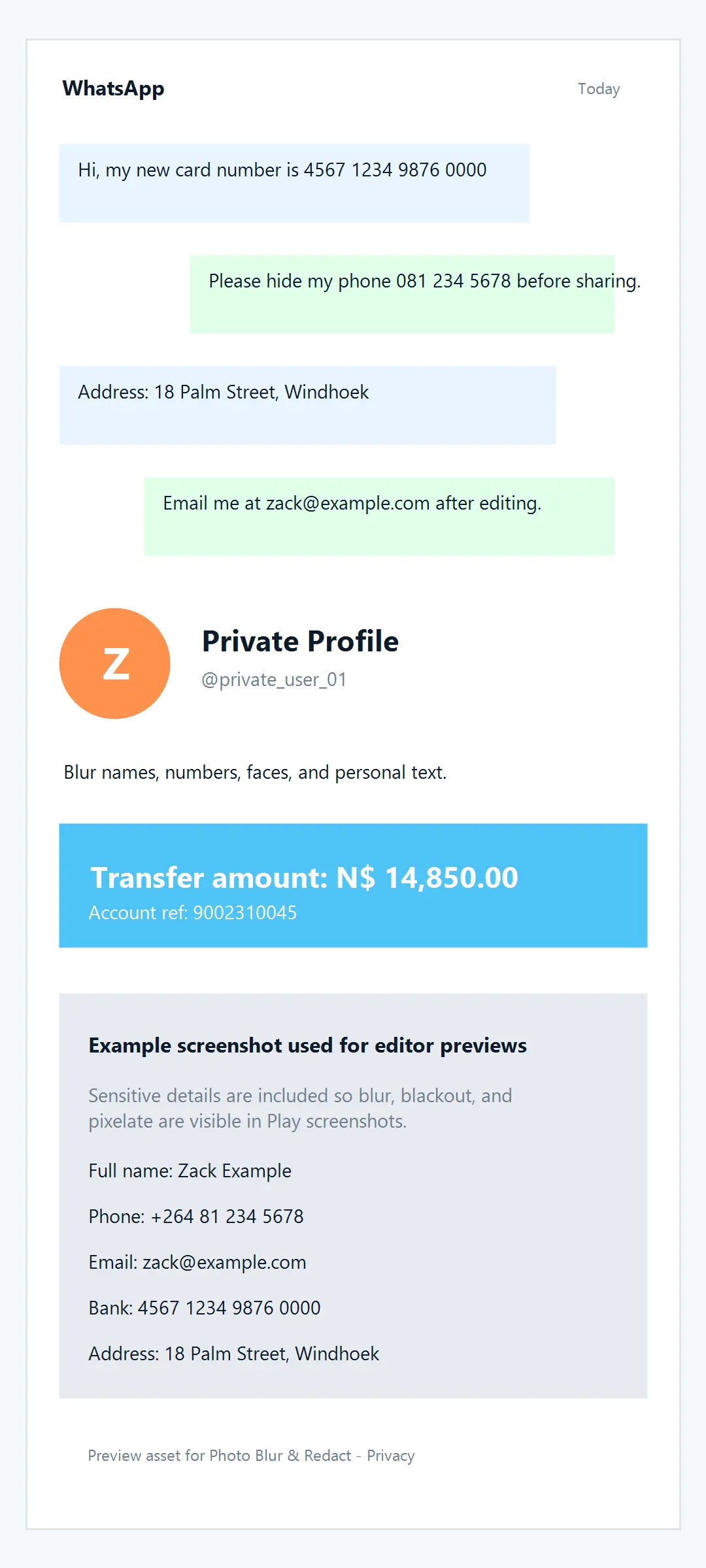
These screenshots show the app flow visitors should expect when they install it from Google Play.
Privacy and Trust
Photo Blur & Redact - Privacy is built for a simple privacy task: helping you hide visible information in images before sharing them.
Images are processed on your device. The app helps cover private details such as names, phone numbers, messages, email addresses, profile photos, and other visible information in screenshots or photos.
Always review the final edited image before sending or posting it. Make sure every sensitive area is fully covered and that no private information remains visible elsewhere in the screenshot.
App details
- App name
- Photo Blur & Redact - Privacy
- Platform
- Android
- Package name
- com.wazackstudios.photoblurredactprivacy
- Support
- support@pdfslim.org
What's new
This page will be kept updated as the Android app evolves. Future release notes can summarize new redaction tools, interface changes, and support improvements.
Frequently Asked Questions
Is Photo Blur & Redact - Privacy free?
The app is available on Google Play. Use the Play Store listing for current availability, pricing, and device compatibility details.
Does it work offline?
The app is designed for on-device image editing. Some Play Store, sharing, consent, or ad-related features may depend on your device and connection.
Are my screenshots uploaded anywhere?
The editing workflow processes images on your device. The app privacy policy explains that the developer does not receive your screenshots, original images, or edited images.
What is the difference between blur, blackout, and pixelate?
Blur softens details, blackout covers them with a solid block, and pixelate turns the selected area into blocky pixels. For highly sensitive text, blackout is usually the clearest option.
Can I use it for photos and screenshots?
Yes. The app is useful for screenshots and ordinary photos.
Does it overwrite the original image?
The app saves a newly edited copy, so you can keep the original separate from the redacted version.
Can I hide phone numbers, emails, and chat messages?
Yes. You can cover visible phone numbers, emails, chat messages, names, usernames, addresses, and other private details.
Is it useful for social media screenshots?
Yes. It is useful before posting screenshots to social media, messaging apps, forums, or public communities.
How do I share the edited image?
After editing, save or share the redacted copy using Android's normal sharing options.
Is it available for iPhone or only Android?
The current app is for Android.
Is it good for creators, freelancers, and students?
Yes. It is useful for anyone who needs to share screenshots while hiding personal, client, school, or work-related details.
Can I use it before posting on WhatsApp, Instagram, or X?
Yes. You can edit the screenshot first, then share the redacted copy through your preferred app.
Related Screenshot Privacy Topics
PDFSlim can build a supporting guide cluster around this app page, covering screenshot privacy, image redaction, blur, blackout, and pixelate workflows.
Why this page matters
This page acts as the main web hub for the Android app, bringing together product details, common privacy questions, real screenshots, and practical guidance for people who want to share images more carefully.
Hide private information before you share your next screenshot.
Use Photo Blur & Redact - Privacy to blur, blackout, or pixelate sensitive details in screenshots and photos on Android.
Images are edited on-device. Need help? Contact support.
Scan to install from Google Play